On this page
- First, distinguish representative imagery from actual vehicle photos
- VIN and YMMT matching: how VinAudit’s Vehicle Images API resolves a vehicle
- Evaluate controls against the screens you will build
- Response format and image file type are different choices
- Decide what happens when the exact configuration is unavailable
- Accessibility and background editing need their own checks
- Use a sample-based buyer checklist
- Frequently asked questions
TL;DR VinAudit’s Vehicle Images API supplies representative rendered imagery using VIN or supported vehicle specifications; it does not provide photographs of the individual vehicle. Evaluate matching, controls and delivery, then decide when a representative image is acceptable and when the page should show an actual photo or a placeholder.
A vehicle images API can supply consistent visuals for search results, vehicle profiles, reports, and merchandising tools. Start by identifying what it returns: photographs of a particular vehicle, representative stock imagery, or standardized rendered images. Those products serve different purposes, even when all accept a VIN.
Choose a service around the image’s intended use, the precision of its vehicle match, its delivery options, and what the application will show when the requested configuration is unavailable.
VinAudit’s Vehicle Images API, the focus of this guide, returns rendered images that represent a vehicle configuration, not photographs of the individual vehicle.
First, distinguish representative imagery from actual vehicle photos
A standardized image illustrates a vehicle configuration. It does not establish the appearance, installed equipment, modifications, or condition of the individual vehicle in a listing.
VinAudit describes its Vehicle Images API as providing OEM-style rendered imagery. “OEM-style” describes presentation; it should not be read as proof that an image is an original manufacturer photograph or that it shows the exact vehicle offered for sale.
Actual-photo services are a separate category. For example, Auto.dev’s Vehicle Photos API documentation describes photos sourced from dealer listings and auctions. That source distinction matters more than whether the request begins with a VIN. A photograph can also be historical, incomplete, incorrectly associated, or too limited to support a condition assessment.
| Image Type | Useful Context | What Readers Should Understand |
|---|---|---|
| Standardized stock or rendered image (VinAudit’s Vehicle Images API returns rendered images) | Model comparison, account profiles, representative listing placeholders | Illustrates a configuration; does not document this vehicle’s condition |
| Photograph associated with an individual vehicle | Listing galleries and vehicle review | Check source, date, association, and completeness |
| Processed photograph with an edited background | Consistent presentation of supplied vehicle photos | Background editing does not verify the vehicle or its condition, and it can change details such as what shows through the windows or the plate. |
| Neutral placeholder | Image or acceptable match unavailable | No vehicle appearance is being asserted |
VIN and YMMT matching: how VinAudit’s Vehicle Images API resolves a vehicle
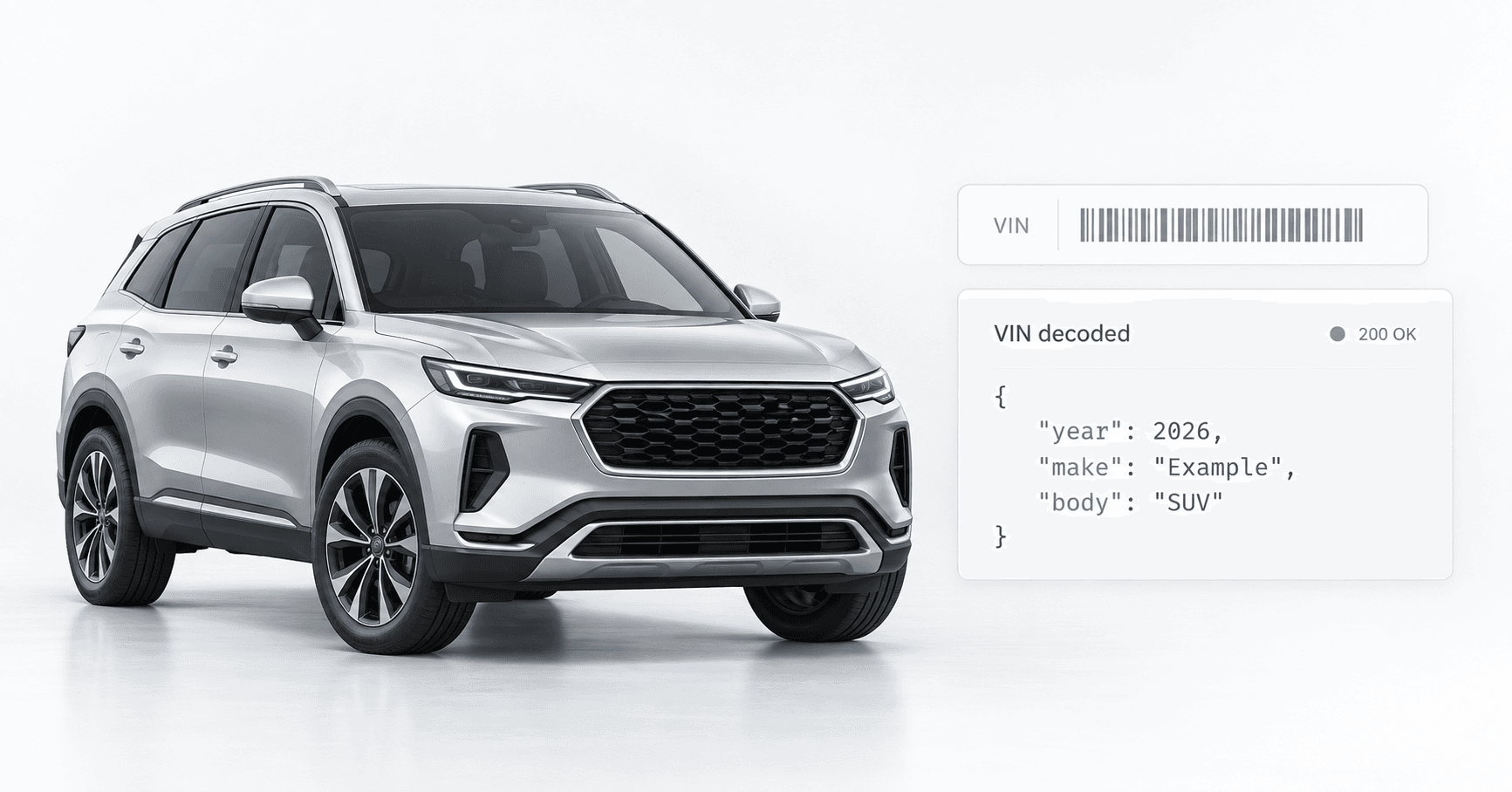
VIN input is a way to identify a vehicle configuration. It is not a promise that the image reproduces every feature attached to that VIN.
YMMT means year, make, model, and trim. Ask how the supplier maps your identifiers to its image catalog, including body style and visually important differences such as wheels or roof configuration. A decoded trim label, from the VIN Decoder API for example, and the visual detail of the asset are separate things to evaluate.
VinAudit’s Vehicle Images API accepts a VIN or a Spec ID built from year, make, model and trim, optionally with style (for example, 2024_maserati_mc20_cielo). A VIN must resolve to a valid Spec ID. At the default trim granularity, the image uses the full resolved specification. If the requested trim doesn’t exist, the API returns an image for another available trim of the same model. At model granularity, trim is ignored: every trim of a model returns the same image, rendered from a default trim that VinAudit currently selects as the most popular available one, according to the Vehicle Images API documentation.
This makes the acceptance rule a product decision. A representative image may be suitable for a saved-vehicle card while an equipment-comparison screen needs tighter matching. Decide which differences are acceptable before choosing a fallback.
Check the requested match against the returned image before accepting it for a screen:
| Requested Match | What to Check | Display Decision |
|---|---|---|
| Trim-level request | Compare requested VIN or Spec ID with available id/ymmt metadata and inspect visually important features. | Accept only if the representation suits the screen; a successful response is not an exact-feature guarantee. |
| Same-model trim substitution | The documented missing-trim fallback uses an available trim of that model. No explicit fallback flag is documented; review metadata and the image. | Accept the approximation only where appropriate and visibly representative; otherwise use a placeholder or suitable actual photo. |
| Model-level representation | Trim is ignored at model granularity. Check that a shared model image will not imply trim-specific equipment. | Use only for contexts that permit a broader representation; preserve the requested vehicle’s text identity. |
The documented response includes id and ymmt metadata but no explicit fallback flag. The reference does not specify whether that metadata reflects a substituted trim. Metadata alone does not establish every visible feature. Keep the requested vehicle identity separate from the image displayed; a substitution must not overwrite the inventory record.
Evaluate controls against the screens you will build
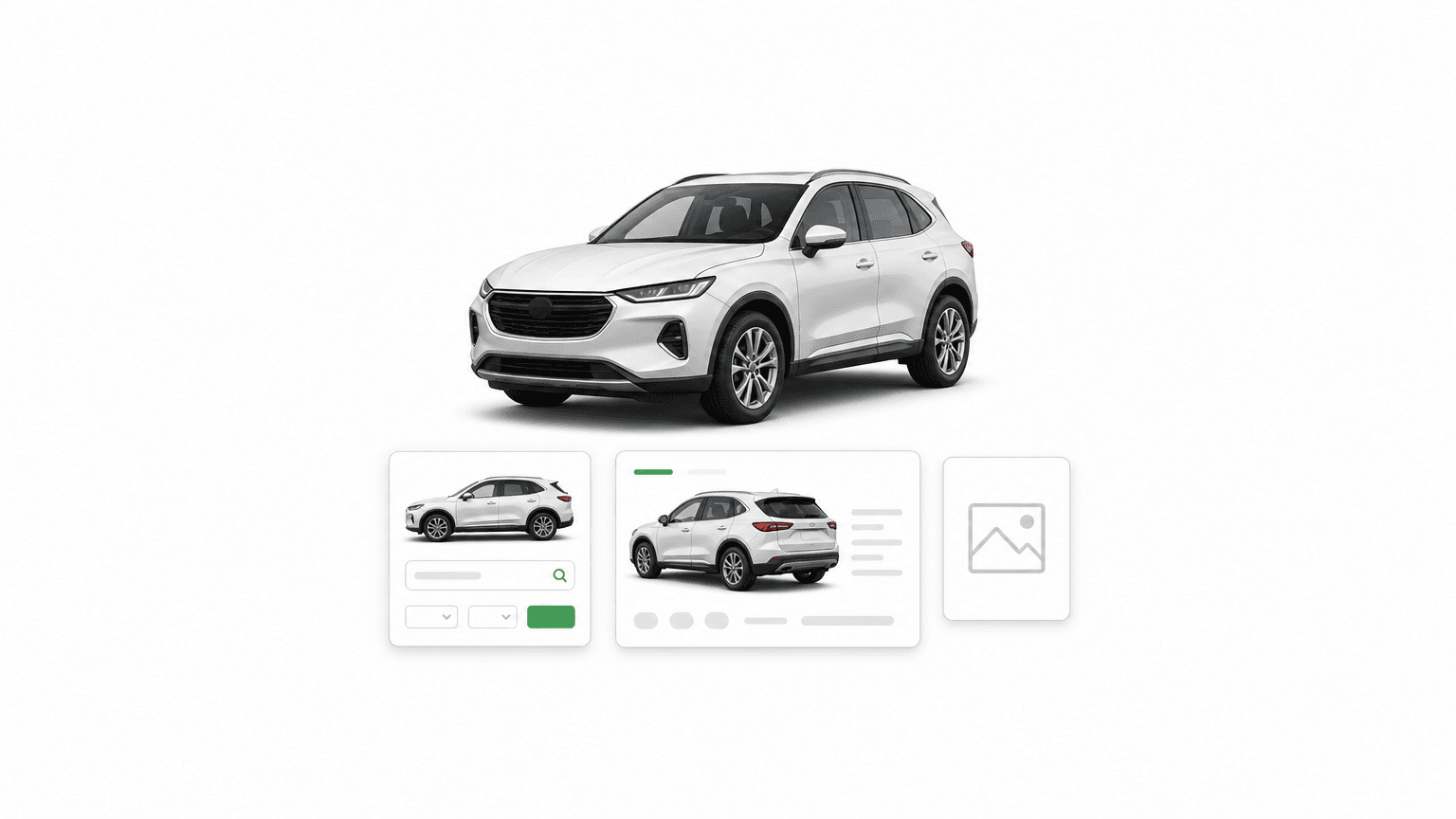
Start with a few real layouts: a compact search card, a vehicle-detail image, and a report or export. For each, specify the desired view, framing, dimensions, and image label.
The Vehicle Images API documentation lists these controls and defaults:
| Control | Documented options | Default |
|---|---|---|
| pose | front_left, front_right, front, back_left, back_right, back, right, left | front_right |
| color | white, black, gray (or grey), silver, blue, red, green, brown, beige, gold, orange, purple, yellow | white |
| background | white, gallery | white |
| size | small 640×480, medium 1280×960, large 2048×1536, xlarge 3000×2000, full 6000×4000, or custom dimensions such as 1920×1080; valid only with JSON or XML output | medium |
| granularity | trim, model | trim |
| crop | true (removes padding), false | false |
Evaluate those options through visible results:
- Angles: check that the selected view is available for your sample vehicles and gives comparable framing across a grid.
- Color: color defaults to white, and the 13 options are generic color names, not factory paint codes. Distinguish a requested display color from a verified factory paint specification.
- Background: the Vehicle Images API documents two backgrounds, white and gallery; check contrast with the page, including light and dark vehicles. Background control does not change what the image establishes about the vehicle.
- Crop and sizing: inspect bumpers, mirrors, wheels, shadows, and padding in narrow cards and larger layouts.
- Granularity: review trims that look materially different, rather than accepting a matching model name as sufficient.
Test appearance at the dimensions people will actually see. A large maximum resolution says little about whether a small card remains recognizable or a crop removes useful context.
Response format and image file type are different choices
JSON and XML describe the response structure. PNG, JPEG, WebP, and AVIF describe image file encodings. A service supporting JSON does not automatically offer every image codec.
For VinAudit, the current Vehicle Images API documentation specifies JSON/XML with encoded image data rather than image URLs, plus HTML for viewing/debugging. The sample image content type is PNG. Only one image is supported per call.
Evaluate how the output reaches your application’s display and storage layers. Check decoding, file validation, dimensions, and error handling in your own environment. Plan to decode base64 image data, since VinAudit’s JSON and XML responses don’t return hosted image URLs. A multi-angle gallery takes one request per image.
For web delivery, request or prepare image variants appropriate to the display slot.
HTML responsive-image techniques, described in MDN’s responsive images guide, can let the browser choose among available resolutions; this is application guidance, not a claim that the API implements browser delivery for you.
If you plan to store or cache assets, check the applicable agreement for permitted storage, reuse, transformation, and retention. Then define an application cache key that accounts for vehicle identity, view, color, background, size, and other output-changing choices. Do not assume one cached image per VIN will cover every use.
Decide what happens when the exact configuration is unavailable
A response can be technically successful yet unsuitable for a particular screen. Treat transport failure, missing imagery, and an unacceptable visual match as different outcomes.
VinAudit’s API applies one fallback before your policy runs: at trim granularity, a missing trim returns another trim of the same model. When a VIN doesn’t resolve to a valid specification or the configuration is unsupported, the API returns success: false with an error instead of an image. Invalid parameter values return descriptive error messages.
Set a fallback policy around the screen’s intended use:
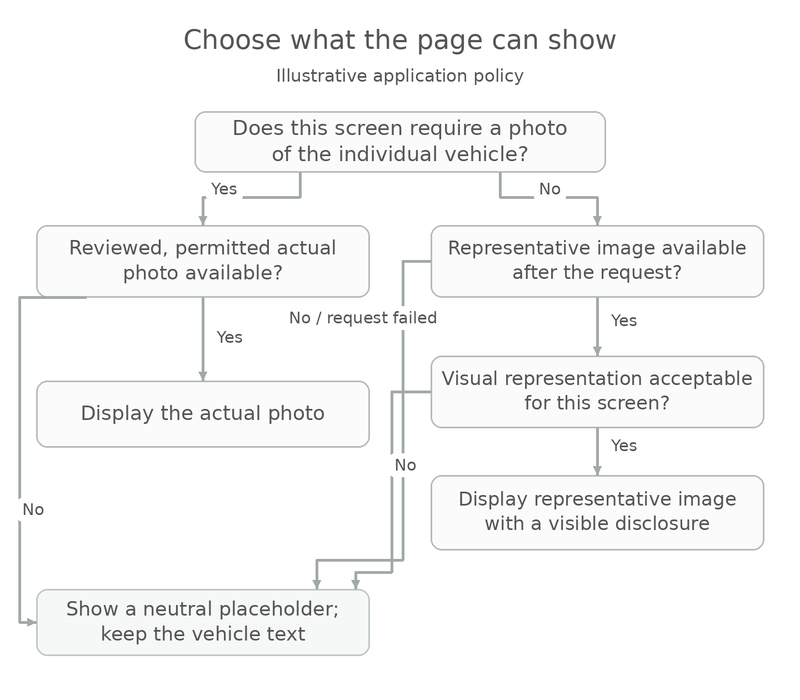
Figure 1. Illustrative application policy—not VinAudit’s internal matching workflow. An acceptable match and clear disclosure are separate checks.
If an image request fails or the visual representation is unsuitable, use a neutral placeholder unless an appropriate, reviewed actual photo is available and permitted for the screen. Do not substitute a nearby model or body style simply to fill the image box. Preserve the vehicle’s text details and provide a route to add or correct photos.
Where the interface could be mistaken for a specific-vehicle photograph, use visible wording such as “Representative image. Actual vehicle appearance and condition may differ.” A disclosure helps explain the image; it does not make a misleading substitution suitable.
Accessibility and background editing need their own checks
Write image alternatives around the information or function the image provides. The W3C Images Tutorial distinguishes informative, decorative, and functional images: meaningful images need suitable text alternatives; purely decorative images can use an empty alternative; linked images should communicate their function.
For a meaningful representative image, a description could identify the model and state that it is representative. Keep any important disclosure visible on the page as well, so it reaches people who can see the image. If a thumbnail only repeats a nearby linked vehicle name, assess whether additional alternative text would add useful information or needless repetition.
If you already have photographs and need to standardize their presentation, evaluate Vehicle Background Removal API separately. Its documentation supports supplied images via URL, file, or Base64 and white, transparent, custom, or generated backgrounds.
VinAudit’s Vehicle Background Removal API removes or replaces the background of a supplied exterior or interior vehicle photo and returns a URL to the processed image. Its documentation notes that output includes “window correction,” which removes background objects seen through the windows. It also offers optional license-plate replacement, a default shadow effect, and prompt-generated backgrounds. Review processed outputs for these and other changes around mirrors, outlines and vehicle details.
Retain the original image in your workflow where permitted. A cleaner background does not establish accuracy, improve the underlying evidence of condition, or resolve image-use rights.
Use a sample-based buyer checklist
Use this checklist for each sample and screen:
- Requested configuration: record the input identity, chosen controls and screen. Include common vehicles, older models, distinct trims, unknown colors, missing configurations and invalid inputs.
- Returned identity: compare available identifiers and attributes with the request; record uncertainty or possible substitution.
- Visible suitability: inspect the image for the intended use. Do not infer exact equipment, factory paint or current condition from a render.
- Display and disclosure: check framing, readability, alternative text and the visible representative-image label at the actual display size.
- Failure and fallback: test request failure, unavailable imagery and unacceptable matches; confirm the page remains usable without changing vehicle details.
Record your observations separately from provider claims. The current Vehicle Images API documentation offers a free developer account for evaluation.
Before choosing a service, answer four questions: Can the match support the intended use? Can the output fit the delivery pipeline? Can people understand what the image represents? Does the page remain useful when imagery is missing? Any purchase decision should also account for the applicable access terms and intended image uses.
Frequently asked questions
Does a VIN-based image show the exact vehicle?
Not necessarily. A VIN can resolve a catalog configuration. Ask whether the product returns photographs of that vehicle or representative imagery, and how much visual detail the match preserves. VinAudit’s API, for example, renders the resolved configuration at trim or model level. It doesn’t photograph the individual vehicle.
Can a rendered image show damage or current condition?
No. Use appropriate current evidence for condition review. Standardized imagery illustrates appearance at a configuration level.
Is a requested color proof of the vehicle’s paint color?
No. A display choice is not verification of factory paint or the vehicle’s present appearance.
What if only a different trim is available?
At the default trim granularity, VinAudit’s API returns an image of another available trim of the same model rather than an error. Decide whether that substitution is acceptable for each screen. Where it isn’t, show a placeholder or actual photos of the vehicle.
Does background removal supply missing vehicle photographs?
No. It processes an image you provide. Retrieving representative imagery and editing a supplied photograph are separate workflows.
Can representative images make listings consistent without misleading buyers?
Representative images can support a consistent presentation, but suitability depends on the image, the screen and what readers could reasonably infer. Label representative imagery, distinguish it from actual photographs, and avoid condition, color or equipment claims. Where readers need a photo of the specific vehicle, use an appropriate actual photo or a placeholder.
Review the Vehicle Images API, its current documentation, and background-processing options against your matching and fallback requirements.